

If you want to record from your iPhone Lock Screen, there are three fast ways to do it. You can use Voice Memos from Control Center, put Voice Memos in one of the two bottom Lock Screen spots, or use the Spit Notes record button instead.
Setting up your Lock Screen to quickly record helps a lot when a great song line or bar hits you. Even one extra step is annoying if you write songs on your phone because great lyrics have a tendency slip away in that delay.
Full transparency: this article is from the team behind Spit Notes. We built it because a lot of writers end up with lyrics in one app, voice memos in another, and no clean way to reconnect the two later.
Quick Setup
- Use Voice Memos in Control Center if you want the easiest setup.
- Use Voice Memos on the Lock Screen if you want the fastest built-in tap.
- Use Spit Notes if the recording is part of a lyric, hook, verse, or melody you want to find again later.
Quick Comparison
| Method | Best For | Speed | Main Downside |
|---|---|---|---|
| Voice Memos in Control Center | Simple setup | One swipe, one tap | Audio still lives separately from your lyrics |
| Voice Memos on the Lock Screen | Fastest built-in iPhone option | Wake and tap | Same split workflow as regular Voice Memos |
| Spit Notes from Lock Screen access | Song ideas, hooks, and lyric capture | Same fast access, better landing spot | Built for songwriting, not general-purpose voice notes |
Before You Start
If Control Center doesn’t open from your Lock Screen, check one setting first. Go to Settings > Face ID & Passcode or Settings > Touch ID & Passcode, then make sure Control Center is allowed when your phone is locked.
Also, if you have a Face ID iPhone, you open Control Center by swiping down from the top-right corner. On older iPhones with a Home button, you swipe up from the bottom.
1. Use Voice Memos From Control Center
This is the easiest built-in setup. It’s fast and already on your phone.
How to set it up
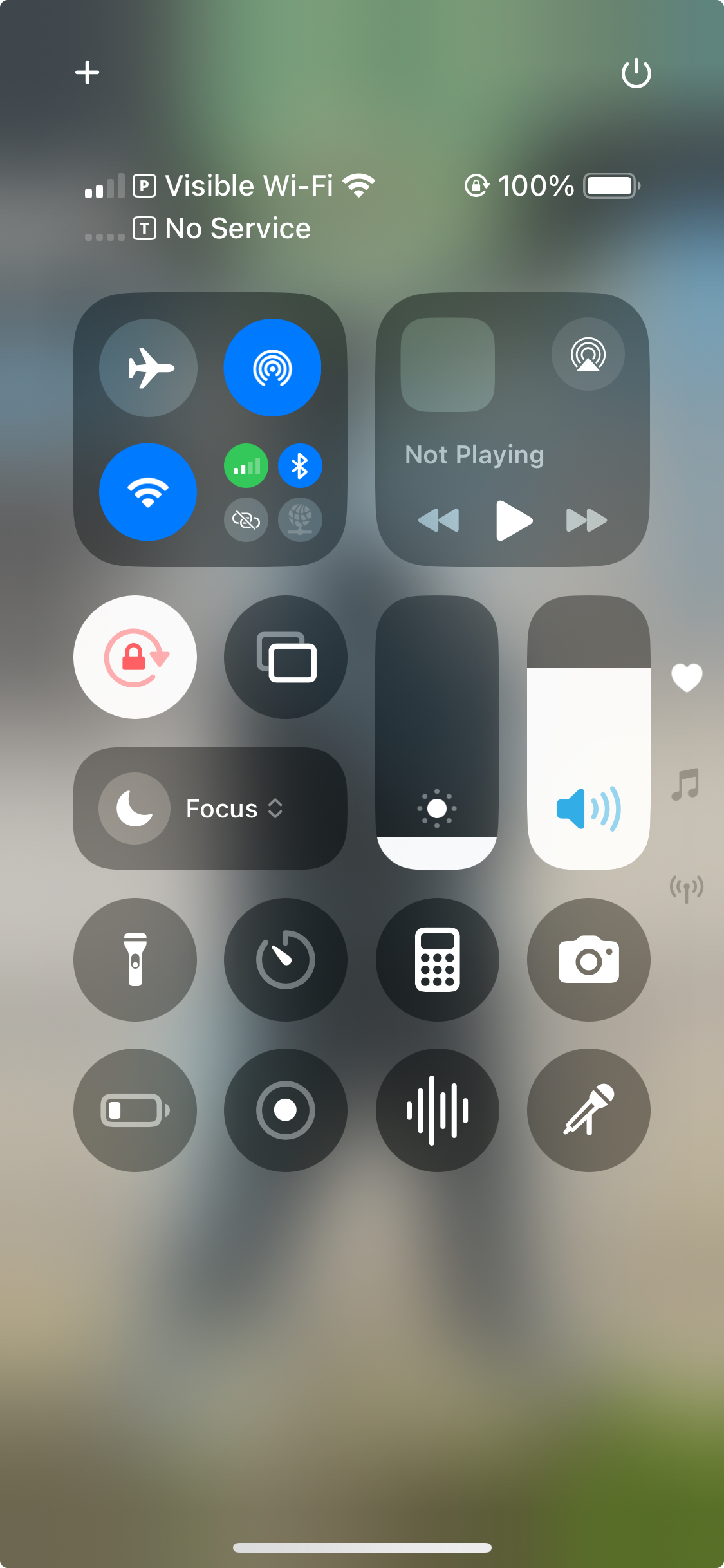
- Open Control Center.
- Tap the + in the top-left corner to start editing.
- Tap Add a Control.
- Search for Voice Memos.
- Tap it to add it to Control Center.
How to use it from the Lock Screen
- Wake your iPhone.
- Open Control Center.
- Tap the Voice Memos control.
- Start recording.
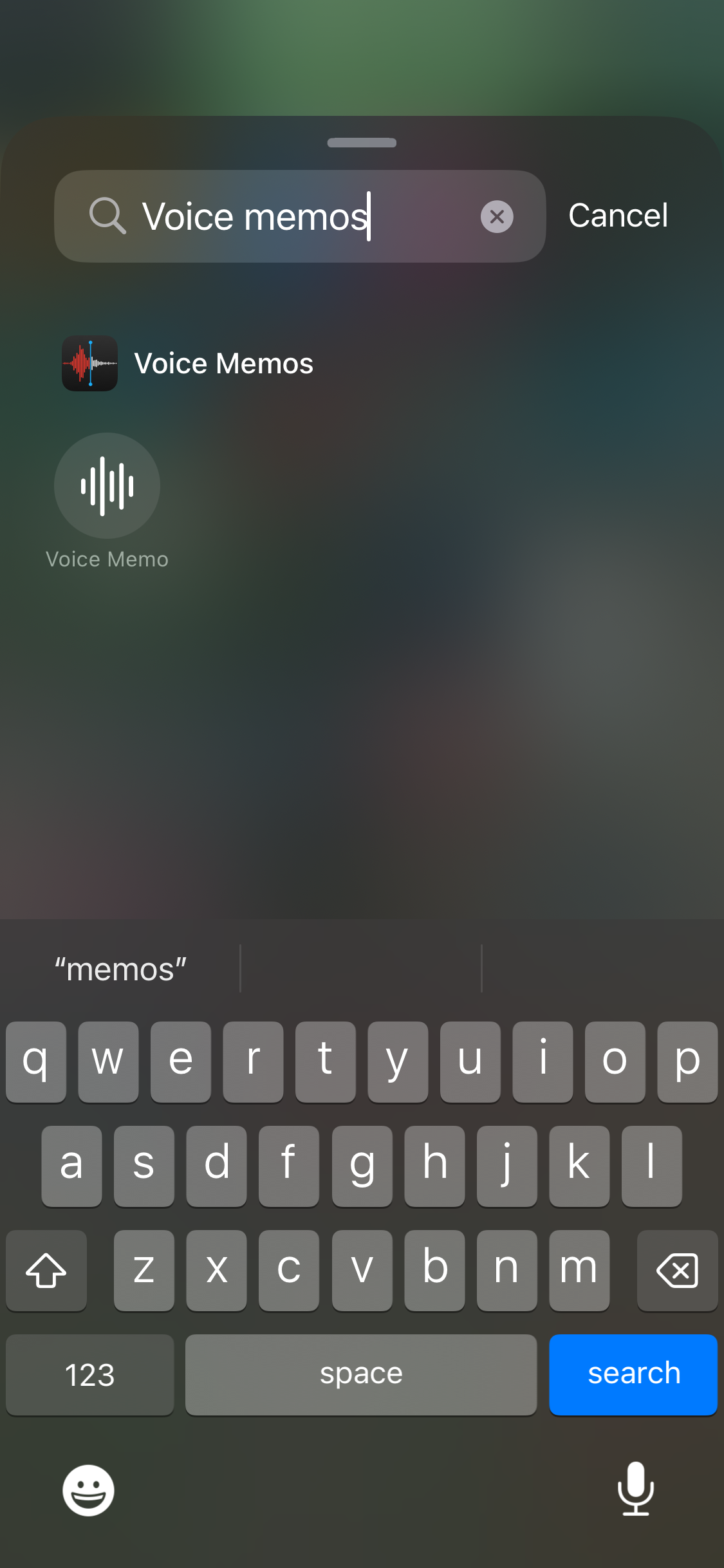
Why this works: it’s simple and always there.
The downside: your audio still lives in Voice Memos, while your lyrics probably live somewhere else. That’s fine for random notes. It’s annoying for songwriting.
2. Put Voice Memos in One of the Two Bottom Lock Screen Spots
If you want the fastest built-in option, this is it. No extra swipe into Control Center. Just wake the phone and tap.
How to set it up
- Wake your iPhone, then touch and hold the Lock Screen.
- Tap Customize.
- Choose Lock Screen.
- Tap the bottom-left or bottom-right control.
- Remove the current control if needed.
- Choose Voice Memos from the control list.
- Tap Done.
How to use it
- Wake your iPhone.
- Tap the Voice Memos button from the Lock Screen.
- Start recording.
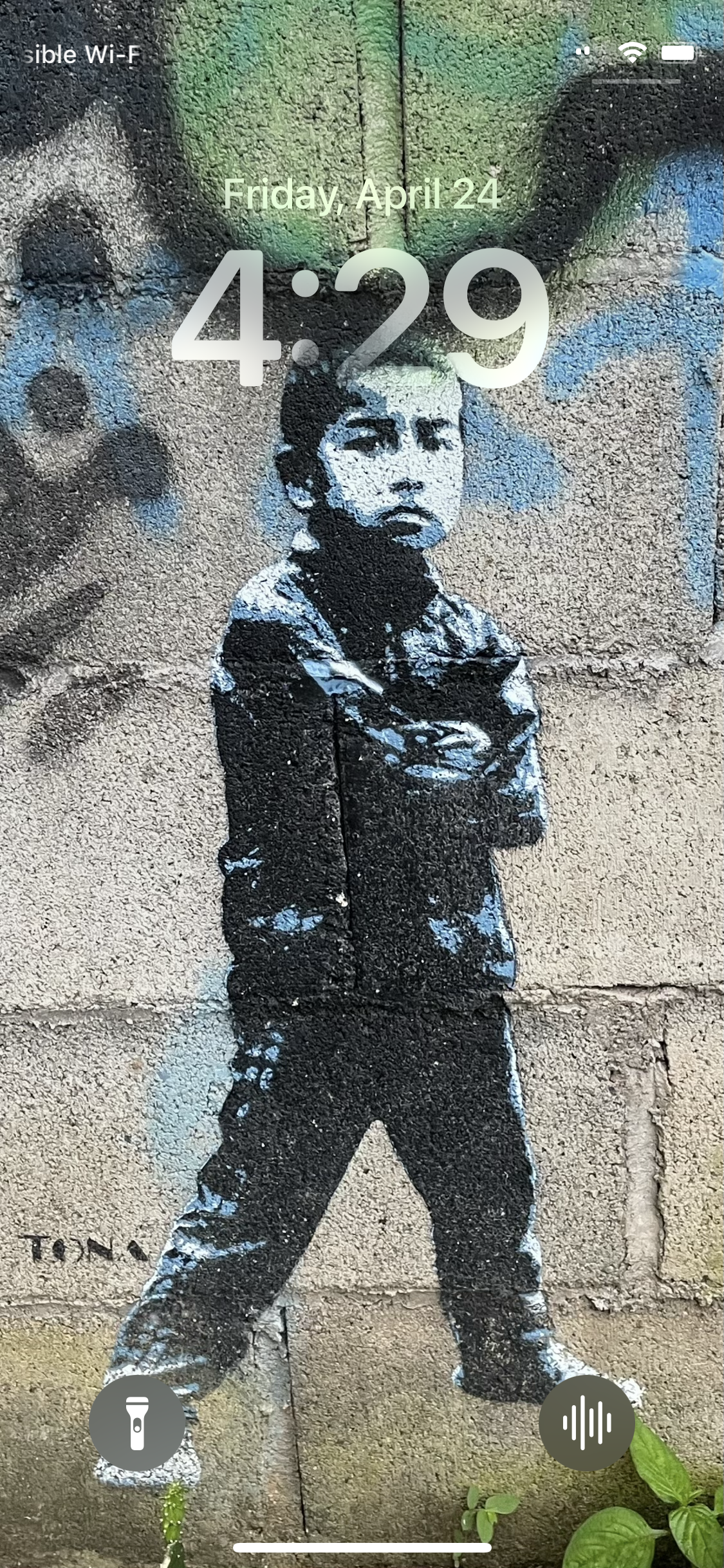
Why this works: it’s right there on the Lock Screen, which means less friction and less fumbling.
The downside: same as method one. Great for catching audio. Not great for keeping that audio tied to your lyric, title, or song idea.
3. Use the Spit Notes Record Button Instead
This is the same general idea, just better suited to songwriting. You add the Spit Notes record control instead of the Voice Memos control, tap it fast from the Lock Screen flow, and the recording lands in your notes automatically when you’re done.
That’s the difference that matters. Voice Memos helps you catch voice notes. Spit Notes is built for the moment when a hook, bar, or melody shows up out of nowhere and you need to keep that audio connected to an actual song idea.
How to add Spit Notes to Control Center
- Open Control Center.
- Tap the + in the top-left corner.
- Tap Add a Control.
- Search for Spit Notes.
- Tap it to add it.
How to put Spit Notes on the Lock Screen
- Wake your iPhone, then touch and hold the Lock Screen.
- Tap Customize, then Lock Screen.
- Tap the bottom-left or bottom-right control.
- Choose Spit Notes.
- Tap Done.
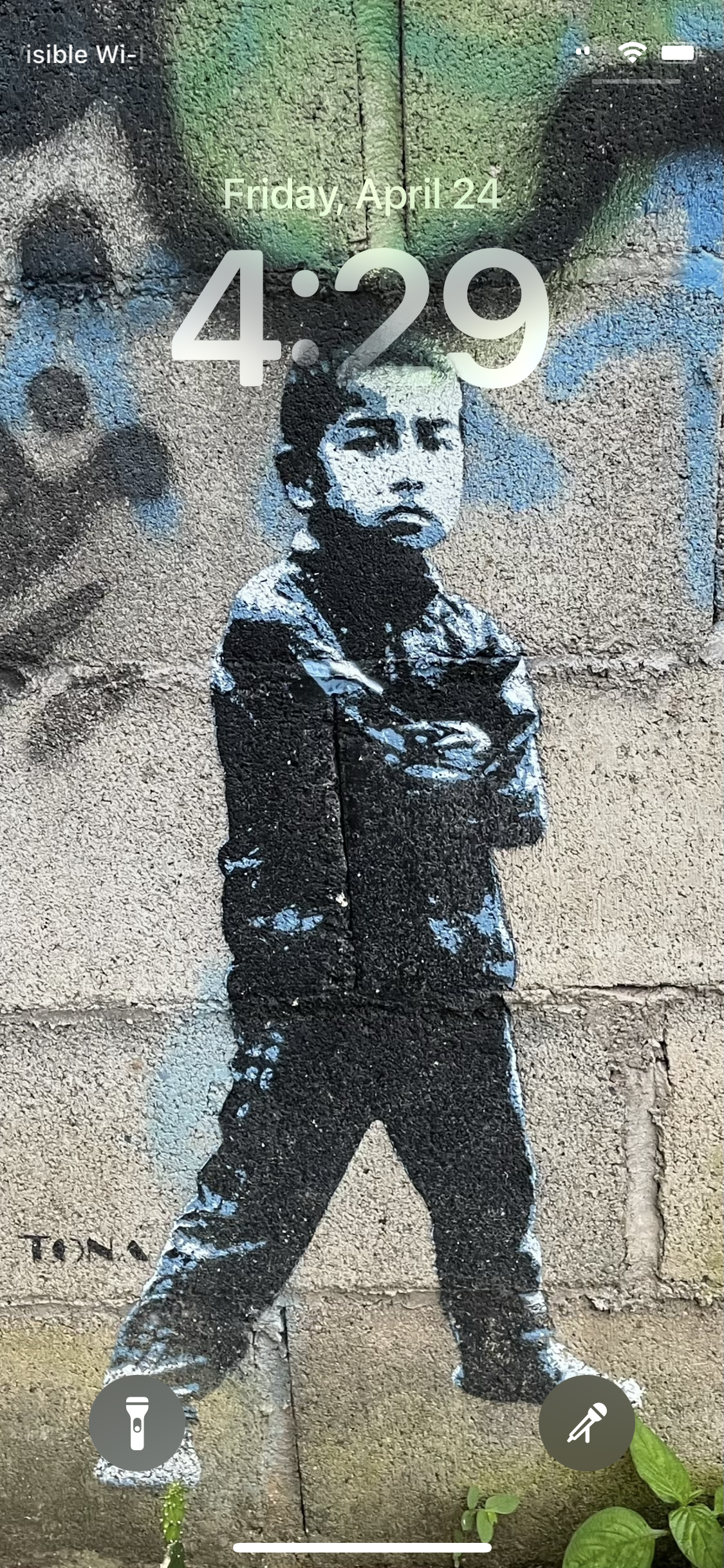
Why this one matters more for song ideas
This is the one I’d use if the recording is part of something I’m writing. Voice Memos is fine when you just need raw audio. But if you’re trying to save a hook and the words that go with it, splitting those across two apps gets old fast.
If you want the bigger picture on that workflow, this post on organizing songwriting ideas gets into why keeping voice and text together matters so much once you start building a real idea bank.
Which One Should You Use?
- Use Voice Memos in Control Center if you want the most basic setup.
- Use Voice Memos on the Lock Screen if you want the fastest built-in tap.
- Use Spit Notes if the recording is part of a lyric, hook, verse, or melody you actually want to come back to.
The thing is, the best setup is the one you’ll actually use when the idea hits. But if you write songs on your phone a lot, having the record button on the Lock Screen is one of those small changes that helps way more than you’d think.
Frequently Asked Questions
Can you add Voice Memos to the iPhone Lock Screen?
Yes. You can add Voice Memos to Control Center, and on newer iPhone Lock Screen setups you can also swap one of the two bottom controls so Voice Memos lives right on the Lock Screen.
How do you add a record button to Control Center on iPhone?
Open Control Center, tap the + to edit, tap Add a Control, then choose the recording control you want. For this article, that means either Voice Memos or Spit Notes.
What’s the fastest way to record from the iPhone Lock Screen?
The fastest built-in option is putting Voice Memos directly into one of the two bottom Lock Screen spots. If you’re recording song ideas, though, the better version of that setup is using Spit Notes so the audio lands somewhere useful instead of getting separated from your lyrics.
Why use Spit Notes instead of Voice Memos?
Use Voice Memos if you just need a quick audio capture. Use Spit Notes if the recording belongs to a lyric, melody, verse, or hook that you’ll want to find and keep building later. That’s the real split between the two.
Key Takeaways
- You can record from your iPhone Lock Screen in three fast ways: Voice Memos from Control Center, Voice Memos from the bottom Lock Screen controls, or Spit Notes using the same fast-access idea.
- Control Center is the easiest setup if you just want a quick record button.
- The two bottom Lock Screen control spots are the fastest built-in way to start recording with one tap.
- Spit Notes makes more sense than Voice Memos when the recording is part of a real song idea and not just random audio.
If you’re tired of losing great lyric ideas to the void, download Spit Notes on the App Store.